Install Microsoft Office desktop apps (Word, Excel, PowerPoint, Outlook) using your @epss.ucla.edu account through the Office 365 portal.
This guide is for individuals with department email. Students without @epss.ucla.edu should email the helpdesk. Works on Windows and macOS.
On this page
1
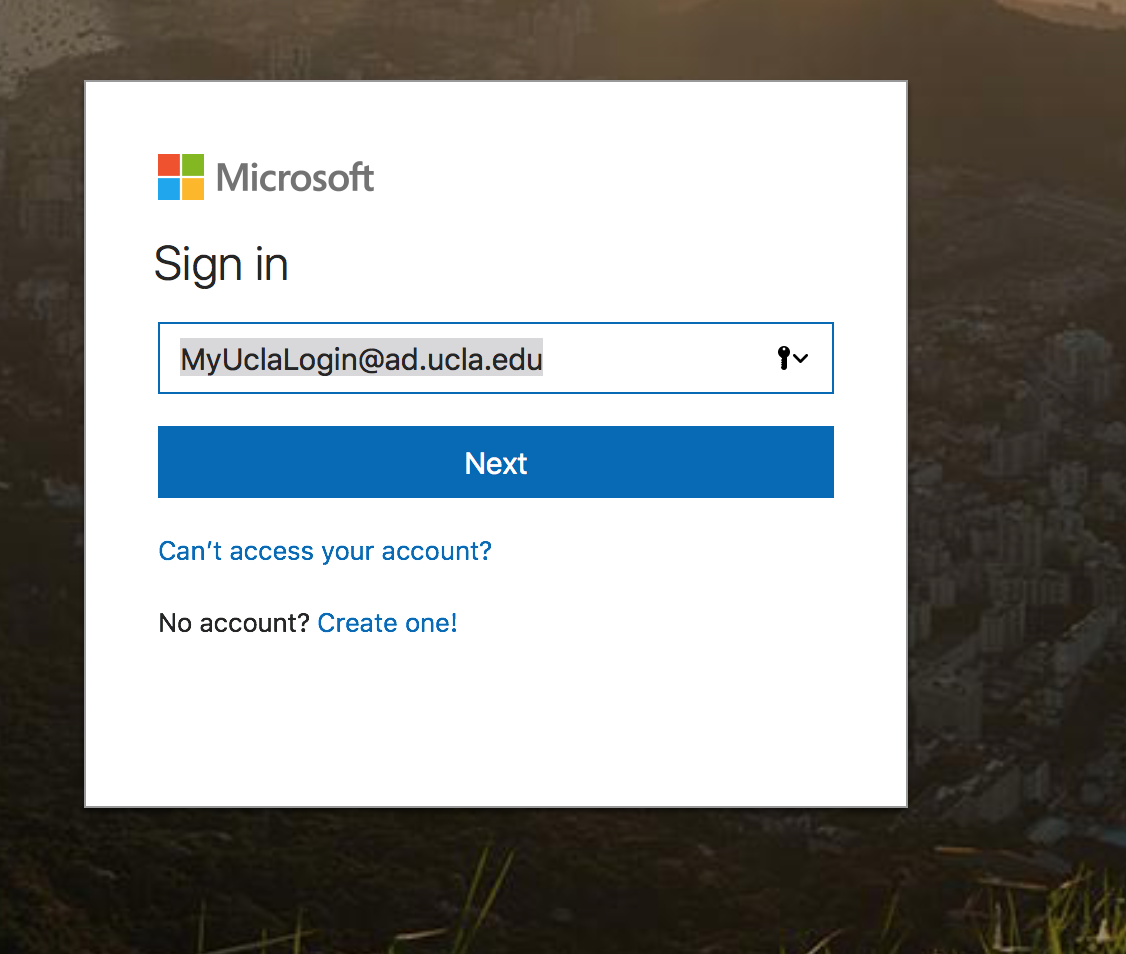
Sign in to Office 365
- Go to portal.office.com (opens in a new tab) (or microsoft365.com (opens in a new tab)).
- Sign in with your Enterprise Messaging (EM) login in
username@ad.ucla.eduformat. - Complete UCLA SSO and Duo MFA if prompted.
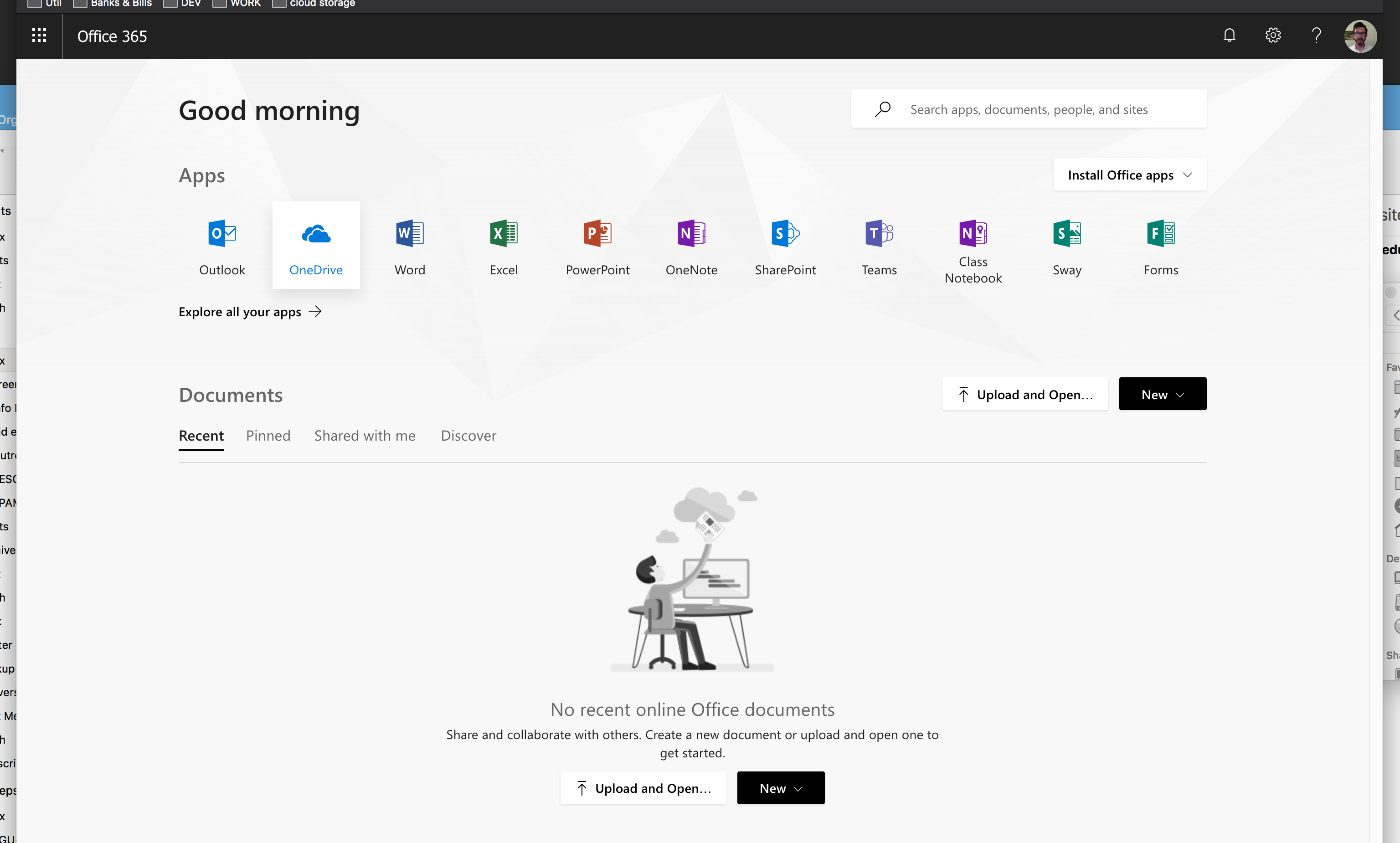
After signing in you should see a row of Office apps (Word, PowerPoint, Outlook, etc.):
2
Download Office apps
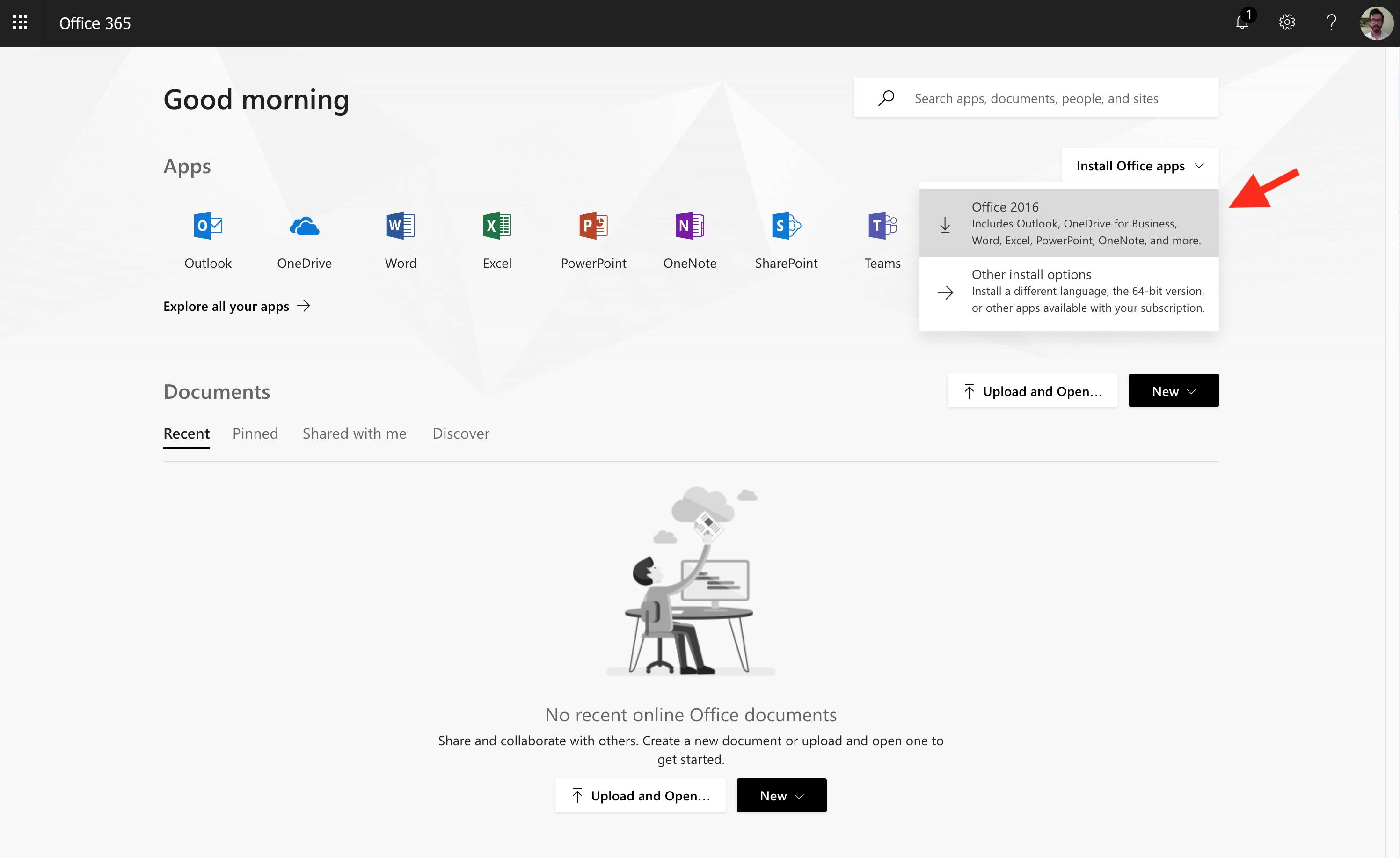
- In the upper-right corner, open the Install Office Apps (or Install apps) dropdown.
- Select Microsoft 365 apps (or Office 2016 on older portal layouts).
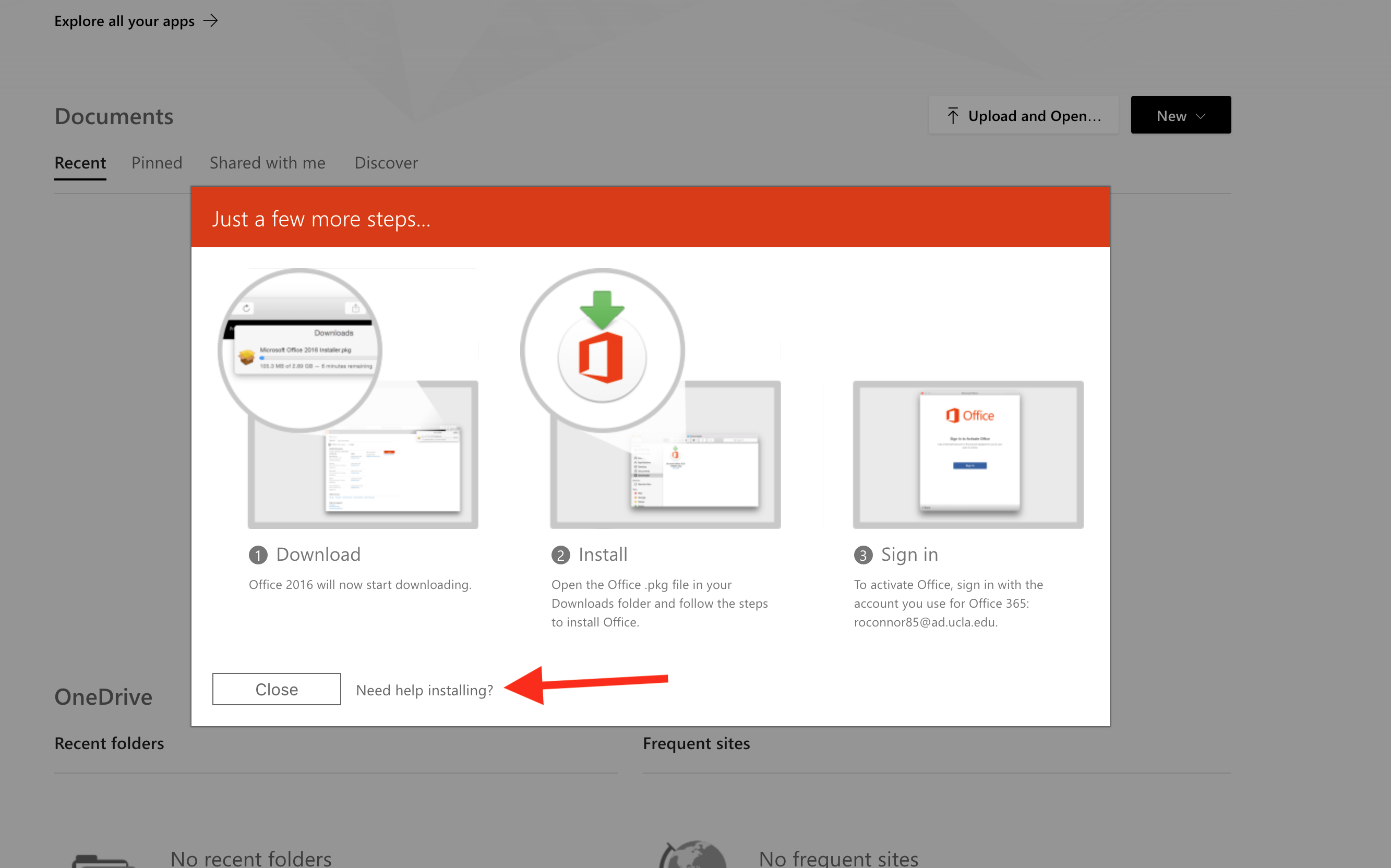
- Allow the installer download to complete.
Also see: How to install Microsoft 365 / Office apps (UCLA Logon version for all campus users).
3
Run the installer
- Windows: Open
OfficeSetup.exe - Mac: Open
Microsoft_365_and_Office_Installer.pkg - Follow the on-screen prompts. Stay connected to the internet until installation finishes.
4
Activate Office
- Open Word, Excel, PowerPoint, or Outlook.
- Sign in with your EM credentials (
username@ad.ucla.edu) when prompted. - Complete SSO/MFA. Office should activate automatically.
Troubleshooting: If you do not see Install apps, confirm you are signed in with your @epss.ucla.edu / EM account. After a password change, use the new password. Restart and retry the installer if setup fails.
5
Need help?
- Email help@epss.ucla.edu for portal login or activation issues.
- Students without @epss.ucla.edu: contact the helpdesk to request Office access.
- Related: Software hub