Exchange Online Protection (EOP) is the spam filter for EPSS department email accounts (@epss.ucla.edu and @igpp.ucla.edu).
Use the web interface to review quarantined messages and manage safe senders and blocked senders.
On this page
About EOP
EOP replaced the Barracuda appliance as the spam filter for all EPSS department email accounts.
IGPP accounts on legacy Zimbra: @igpp.ucla.edu accounts that have not migrated to Enterprise Messaging still use the Barracuda appliance. Email help@epss.ucla.edu if you are unsure which system applies to you.
EOP is available in the Outlook desktop app and through Office 365 on the web. This guide covers the web interface, which works for all EPSS users.
Review quarantined messages
- Sign in to your department email via Office 365 using these instructions.
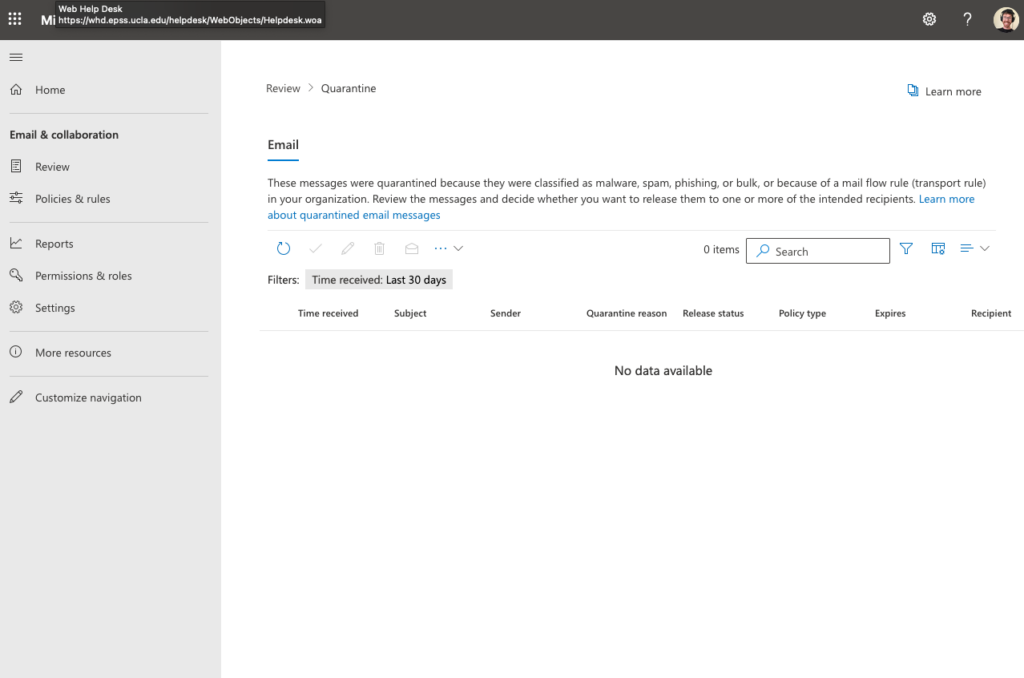
- Go to security.microsoft.com/quarantine to view quarantined messages and release or delete them.
- For detailed steps from Microsoft, see Find and release quarantined messages as a user.
Open Outlook settings
- Sign in to Office 365 using these instructions.
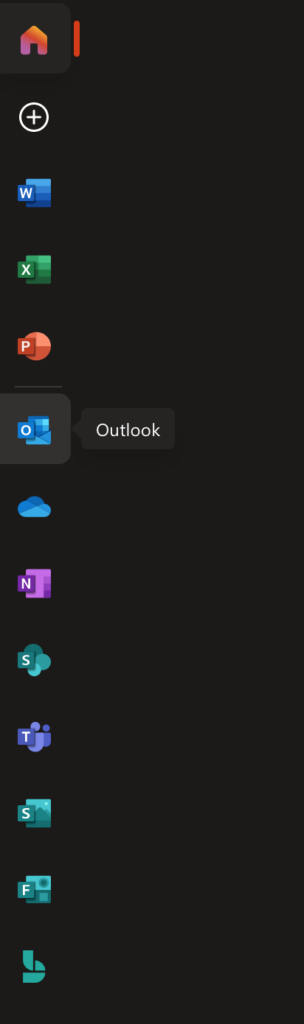
- Open Outlook from the left-side app menu.
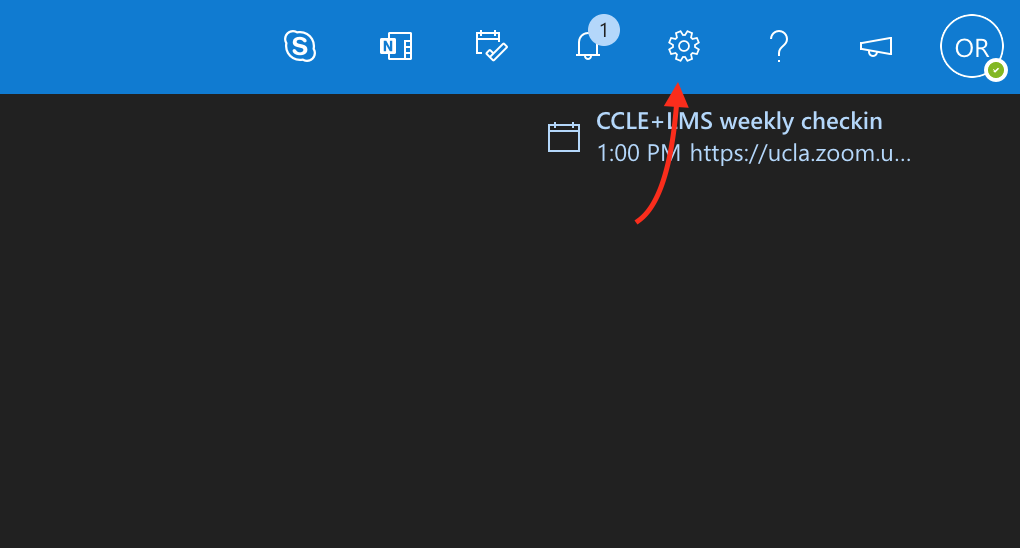
- Click the Settings gear icon in the upper-right corner.
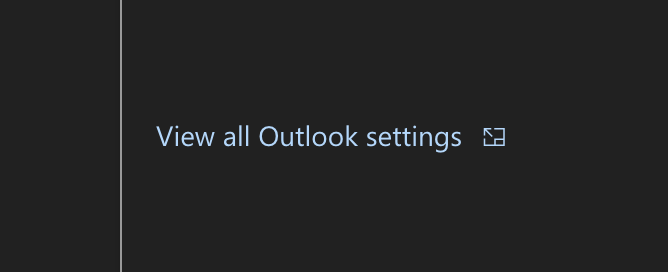
- At the bottom of the settings panel, choose View all Outlook settings.
Manage junk email lists
- In Outlook settings, click Mail > Junk email.
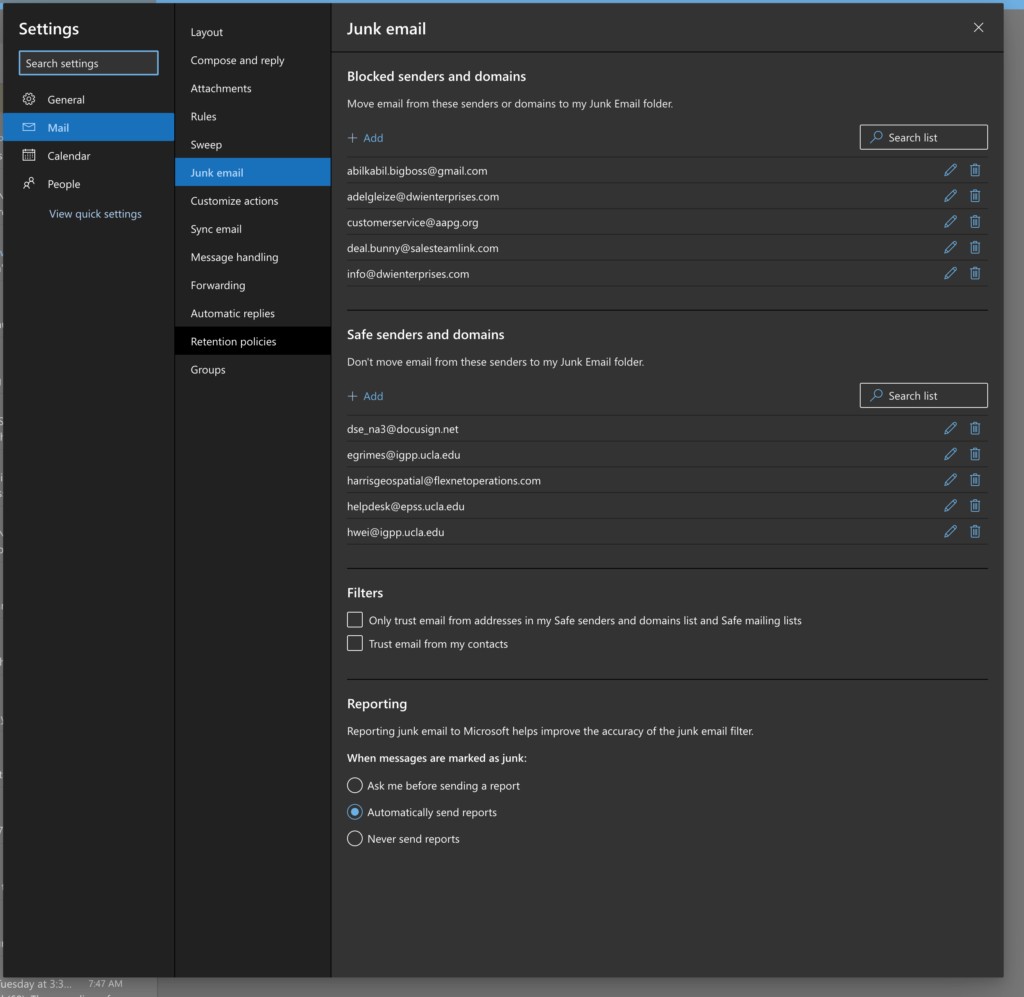
Add individual email addresses to the allow or block lists. Addresses under Safe senders and domains will not be marked as spam.
Individual addresses only: You can add individual accounts to these lists, not entire domains. To allow all mail from a domain (for example, @physics.ucla.edu), email help@epss.ucla.edu and EPSS IT will work with campus to create the entry.
Reporting and domain requests
Under Reporting, set the option to Automatically send reports so you are notified when messages are flagged and do not miss important communications.
Questions or problems? Report the issue with as much detail as possible to help@epss.ucla.edu and EPSS IT will help resolve it.