Geology 4691 has 12 dual-boot Mac minis running Windows and macOS. Use your EPSS account to sign in on the Mac side.
Network files on macOS work differently than on Windows — read the storage section below before you log out.
1
Switch between Windows and macOS
The computers boot into the last OS that was selected by default. To change OS:
- Restart the computer.
- Hold the Option key during startup to launch Boot Camp (Apple’s boot loader).
- Select the operating system you want to use.
2
Sign in on macOS
- After booting into macOS, you will see a row of user accounts.
- If you do not see a gray circle named Other, wait a moment — the Mac needs to connect to the account server.
- Click Other and log in with your EPSS account credentials.
- This creates a local user account for you on that machine.
Important: On Windows machines, your Desktop, Downloads, Documents, and other folders are automatically synchronized with the server when you log out. This does not happen on the Mac side.
3
Access your network storage
- Click the blue globe in the Dock to access your network storage.
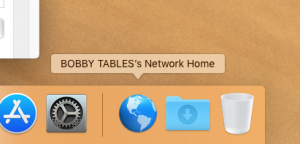
This is the same share listed as your U:/ drive on Windows machines, and it is accessible across platforms.
Questions? Email help@epss.ucla.edu.