Reserve EPSS conference rooms and resources at calendar.epss.ucla.edu.
Sign in with your EPSS department account — the same username and password you use for other EPSS services. It is not your UCLA Logon ID and not a Google account.
On this page
Before you start
You need two things. Most problems with the calendar come from missing one of them.
- Network access — From off campus (or if the page does not load), connect to the UCLA Campus VPN (opens in a new tab) first, then open the calendar. On campus the site usually loads without VPN.
- Your EPSS account — The department username and password. Anyone with a working EPSS account can reserve a room. You do not need to be added to a special group.
What changed from the old system: The address is the same. You used to open the calendar and then go to a second site to sign in and reserve. That second step is gone — you now sign in and reserve in the same place.
Sign in
- If needed, connect to the UCLA Campus VPN (see step 1).
- Open https://calendar.epss.ucla.edu (opens in a new tab).
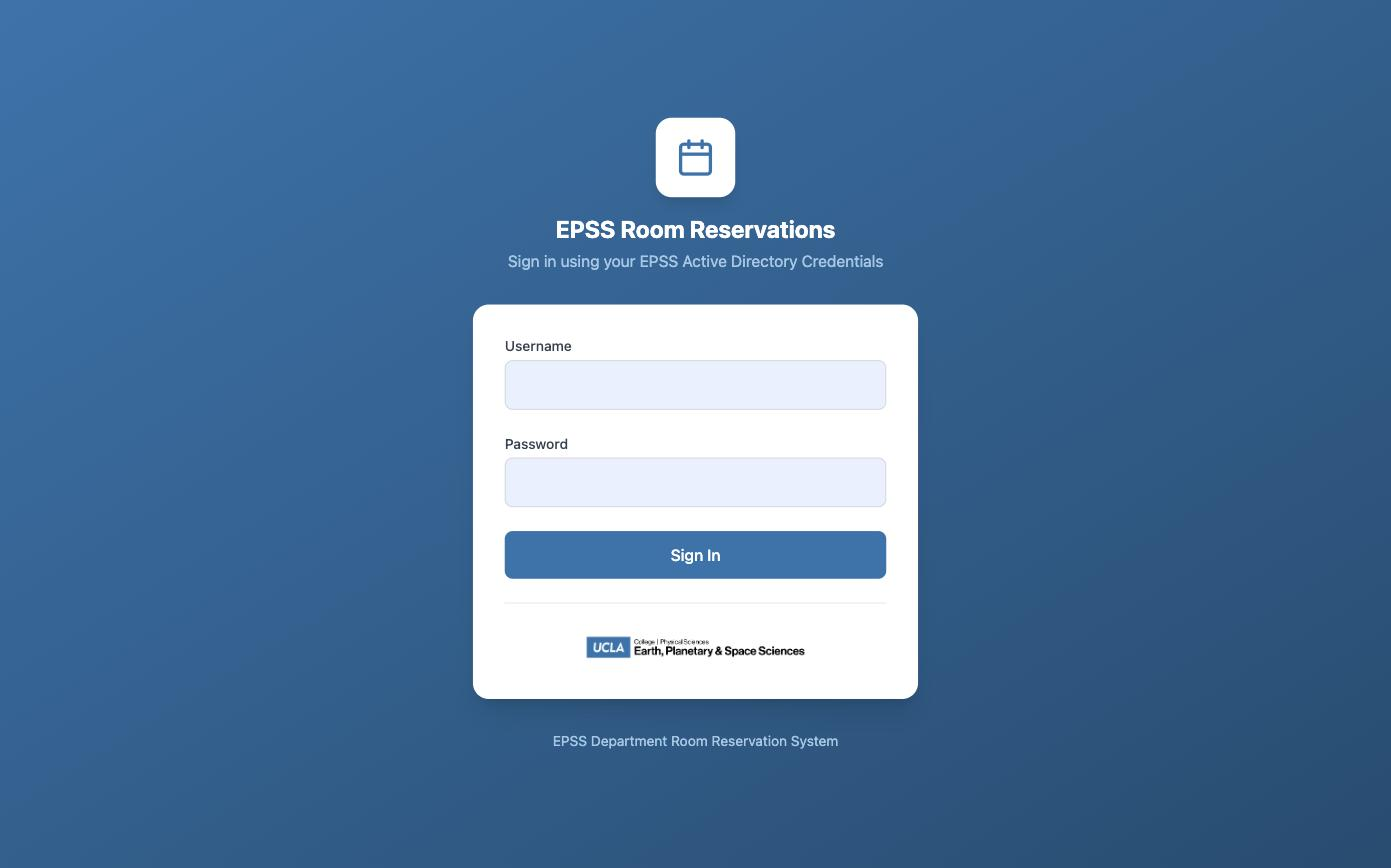
- Enter your EPSS Username and Password, then click Sign In.
Read the calendar
After you sign in you see the department calendar. Use it to check whether a room is free before you reserve it.
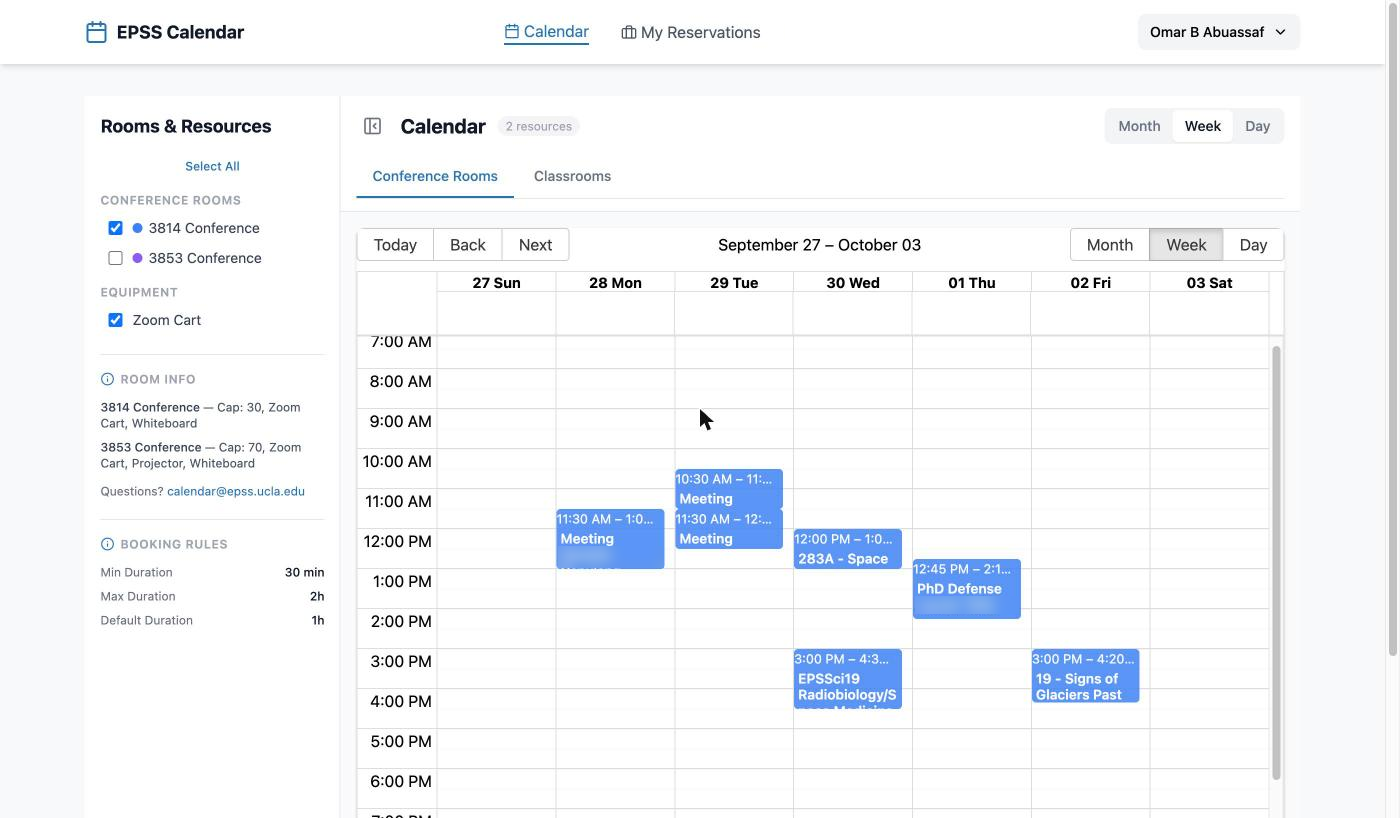
- Rooms & Resources (left side) — tick the rooms you want to see. Each room has its own color. Equipment such as the Zoom Cart can appear here as its own resource.
- Conference Rooms / Classrooms tabs — switch between the two groups of rooms.
- Month / Week / Day, and Today / Back / Next — move to the date you need.
- Room Info — capacity and equipment of the rooms you ticked (for example, 3814 seats 30 and has a Zoom cart and a whiteboard).
- Booking Rules — the shortest and longest reservation allowed. Conference rooms allow a minimum of 30 minutes and a maximum of 3 hours.
How far ahead can I book? Reservations must be made at least 2 days in advance and no more than 12 weeks ahead. Holidays and department closures cannot be booked.
Need longer than 3 hours? The form will not accept a longer slot than Booking Rules shows. Email help@epss.ucla.edu with the room, date, and times if you need an exception.
Start a new reservation
The fastest way is to pick the open time on the calendar. That opens the form with the room, date, and times already filled in.
- On the calendar, tick the room you want on the left (Rooms & Resources).
- Go to the date (Month / Week / Day, or Today / Back / Next).
- Click an empty time slot for that room — a blank stretch of the calendar, not an existing colored block.
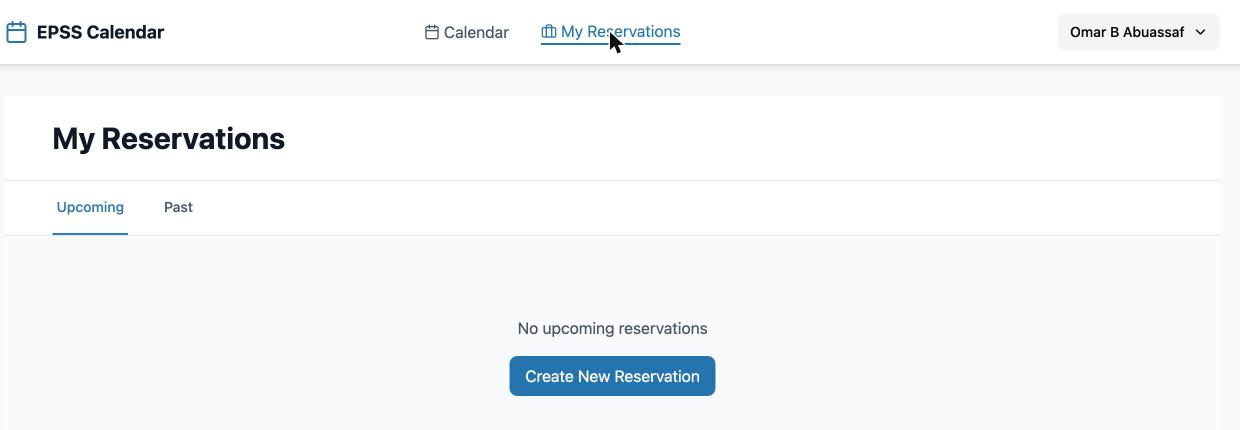
Alternate: Open My Reservations and click Create New Reservation (always available at the top of that page). Then choose the room, date, and times yourself.
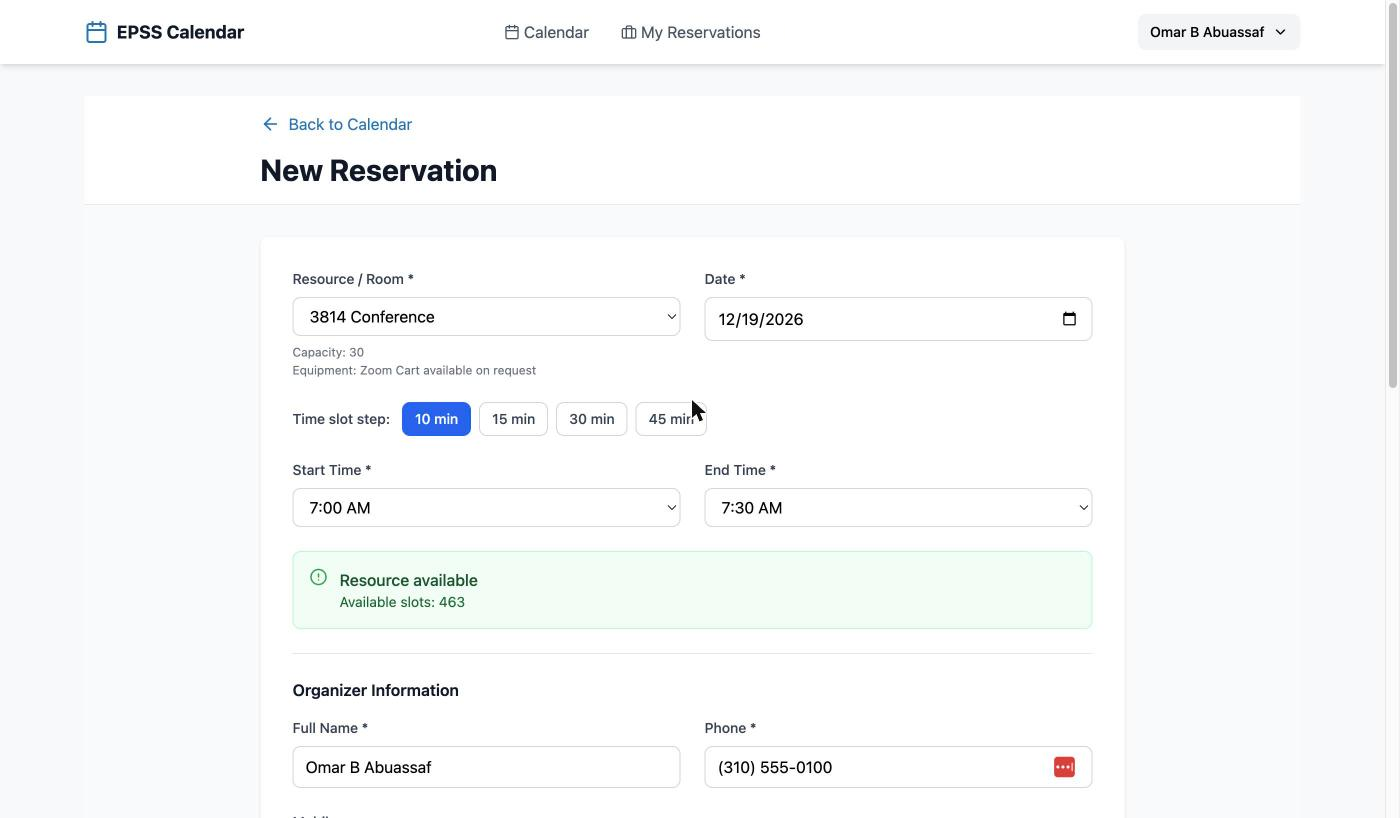
On the form:
- Confirm the Resource / Room. Capacity and equipment for that room appear under the list.
- Confirm or change the Date.
- Confirm or change the Start Time and End Time. The Time slot step buttons (10, 15, 30, 45 min) only change which times are offered in the two lists. Pick 15 min if you need a time such as 12:45.
- Look for the green Resource available box. It appears when the room, date, and times are filled in and the room is free.
Fill in the details and submit
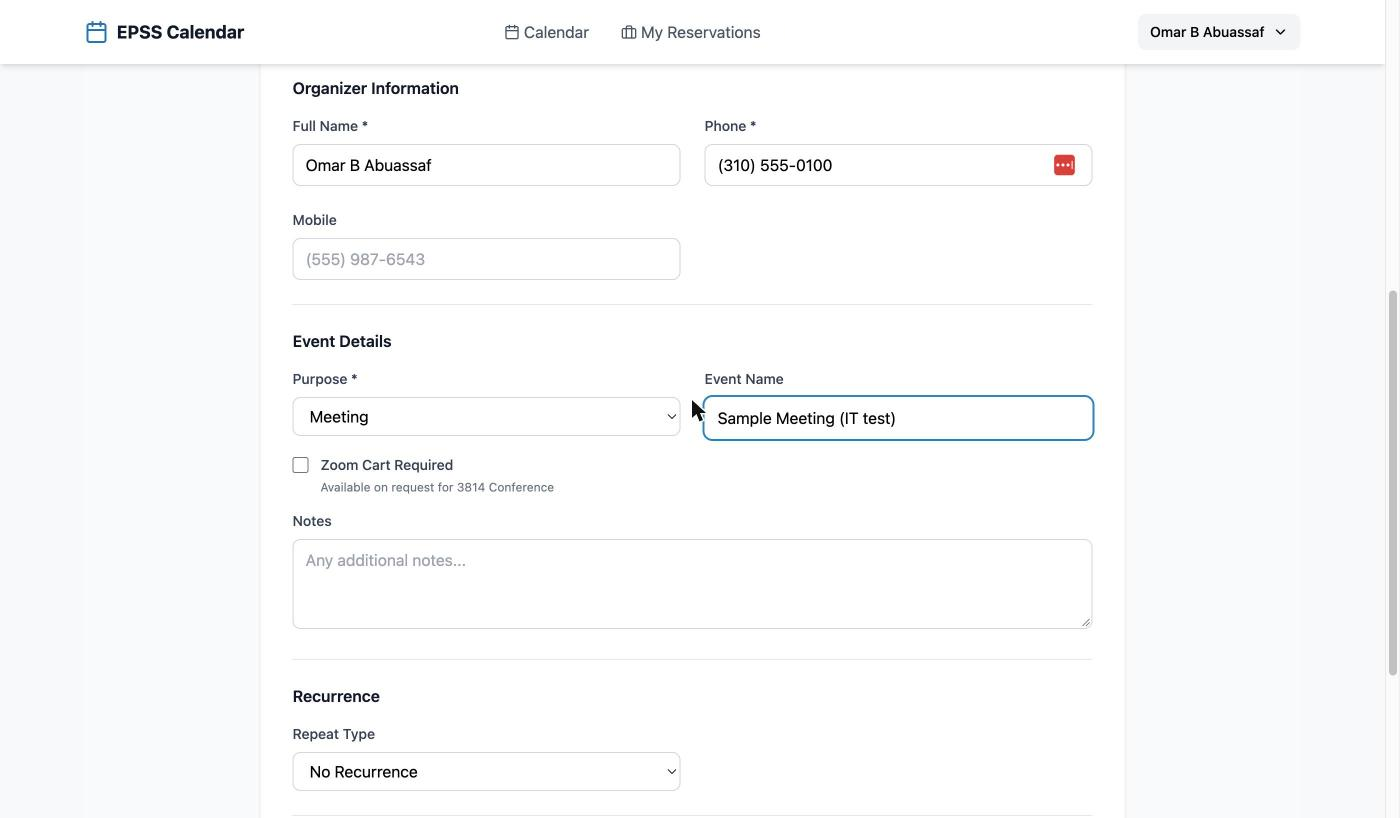
- Organizer Information — check your Full Name and enter a Phone number where you can be reached. Mobile is optional.
- Event Details — choose a Purpose (Class, Seminar, Meeting, Workshop, Office Hours, Event, or Other) and type an Event Name. Other people see the event name on the calendar, so make it clear (for example, “PhD Defense” or “Group Meeting”).
- Tick Zoom Cart Required only if you need the Zoom cart. The box appears only for rooms that have one.
- Use Notes for anything the office should know. Leave Recurrence on No Recurrence unless the event repeats.
- Click Create Reservation.
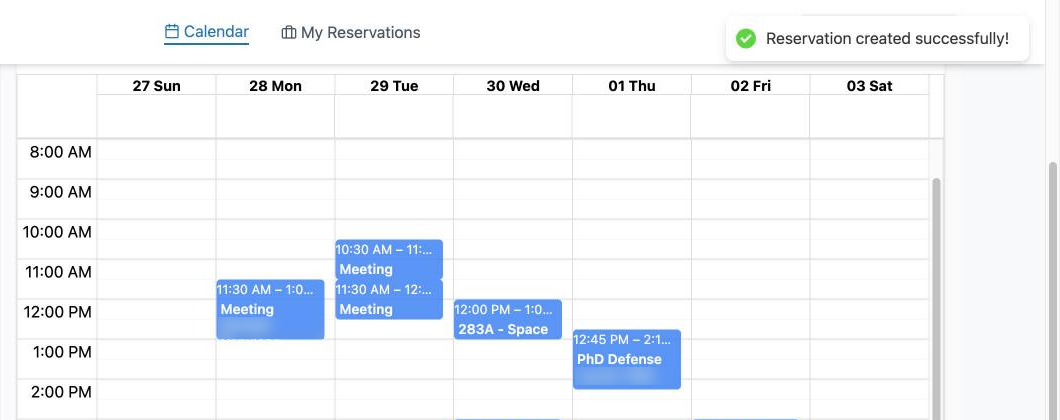
You return to the calendar and a green message confirms the reservation. The room is held for you, and nobody else can reserve the same room at the same time.
See, change, or cancel a reservation
Click My Reservations at any time. Upcoming lists future reservations and Past lists old ones.
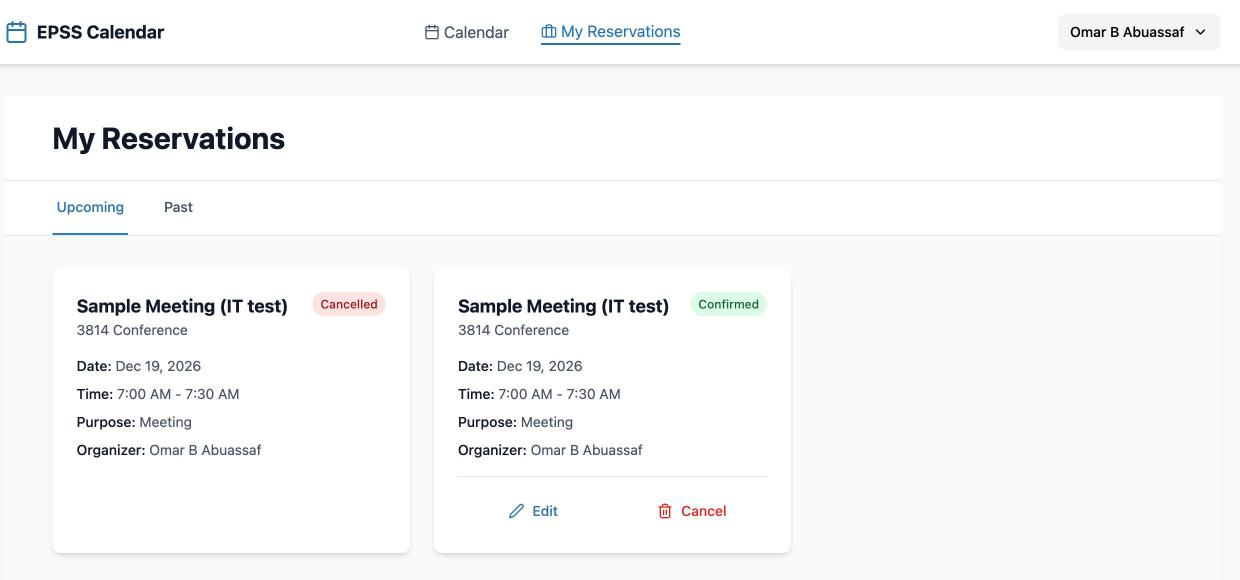
- Edit — change the room, date, time, or details.
- Cancel — asks “Are you sure you want to cancel this reservation?” Click the red Cancel button to confirm, or Keep to go back. A cancelled reservation cannot be restored. The card stays in your list marked Cancelled, and the room is free for others again.
Please cancel what you do not need. If your plans change, cancel the reservation so someone else can use the room.
If something does not work
- The page does not load — Connect to the UCLA Campus VPN (opens in a new tab), then reload. This is the most common cause off campus.
- Sign-in is rejected — Use your EPSS department account, not your UCLA Logon ID. To reset the password, sign in at db.epss.ucla.edu (opens in a new tab), open the profile menu, and choose Reset Password. If you cannot sign in there either, email help@epss.ucla.edu.
- You are signed out while filling the form — The session ends after about 30 minutes without activity. Sign in again and start the form over.
- The room is already taken — The calendar does not allow two reservations of the same room at the same time. Pick another time or another room.
- A day cannot be reserved — Holidays and department closures are blocked. Also check that the date is at least 2 days ahead and within 12 weeks.
- You need more than 3 hours — Email help@epss.ucla.edu with the room, date, and times.
Quick reference
- Open the calendar — UCLA Campus VPN if needed → calendar.epss.ucla.edu (opens in a new tab) → sign in with the EPSS account
- Check if a room is free — Calendar → tick the room on the left → go to the date
- Reserve a room — Click an empty time slot on the calendar (pre-fills the form), or My Reservations → Create New Reservation → room, date, times, phone, purpose, event name → Create Reservation
- Change or cancel — My Reservations → Edit or Cancel on the card
- Reset my password — db.epss.ucla.edu (opens in a new tab) → profile menu → Reset Password
- Get help — help@epss.ucla.edu
Questions about room equipment? Room Info on the calendar lists capacity and features. Seminar and colloquium announcements for the public website are a separate process — see How to submit EPSS seminars.